Free QR Code Options
Our Free QR Code Generator supports multiple types of QR codes tailored for specific needs. Each option below explains what it’s used for, which fields to fill, and how to make the most of it.
QR Code for Link
The Link option generates a QR code that opens a specific webpage when scanned. It’s useful for sharing websites, product pages, portfolios, or any online resource without requiring users to type long URLs.

Fields Explained
- URL: Enter the complete link starting with
https://orhttp://. Example:https://example.com.
QR Code for Location
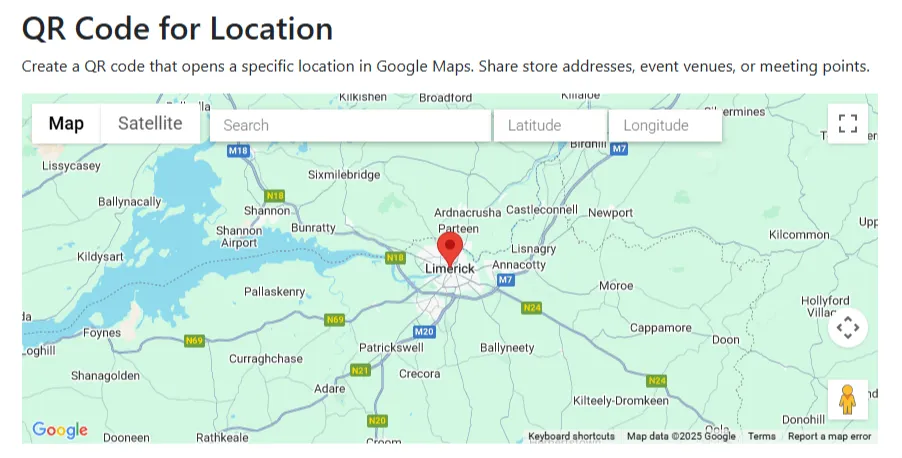
This option creates a QR code that points to a Google Maps location. Great for event venues, stores, or meeting points where directions matter.
Fields Explained
- Map / Search: Use search to find your location or drag the map manually.
- Latitude & Longitude: These fields populate automatically but can be set manually for precision.
QR Code for Phone Number
The Phone Number option generates a QR code that dials a phone number immediately after scanning. Ideal for business cards, flyers, and posters for quick contact.

Fields Explained
- Country Code: Choose the appropriate dialing code (e.g., +1 for US, +44 for UK).
- Phone Number: Enter the phone number without spaces or dashes.
QR Code for WhatsApp
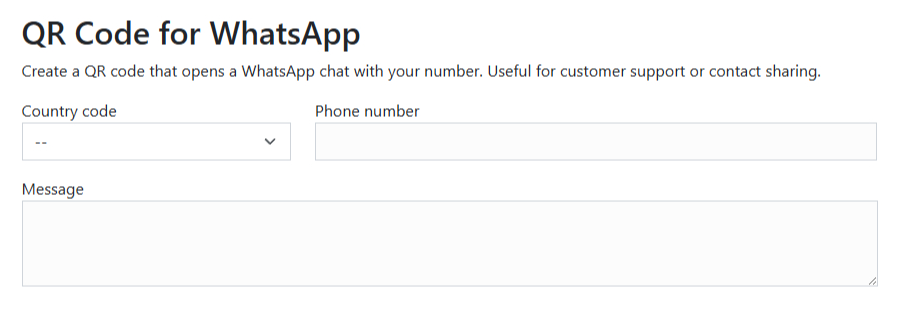
Use this to create a QR code that starts a WhatsApp chat with your number. Excellent for customer support or contact forms where quick messaging is needed.
Fields Explained
- Country Code: Select your country dialing prefix.
- Phone Number: Enter the WhatsApp-enabled number.
- Message (optional): Pre-fill a message so it’s ready to send when scanned.
QR Code for Zoom Meeting
Generates QR codes linking directly to Zoom meetings or webinars. Useful for event invitations and quick access to scheduled online meetings.

Fields Explained
- Meeting ID: Paste your Zoom meeting’s numeric ID.
- Password: Enter the meeting password if required.
QR Code for Wi-Fi
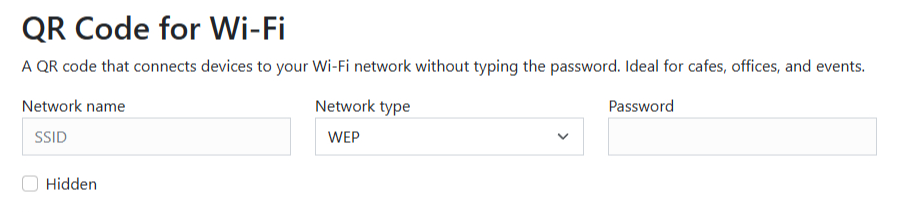
This option shares your Wi-Fi network credentials through a QR code. Visitors can connect instantly without manually entering network details.
Fields Explained
- Network Name (SSID): Enter your Wi-Fi network name exactly as broadcasted.
- Network Type: Choose WEP, WPA/WPA2, or None.
- Password: Enter your Wi-Fi password if applicable.
- Hidden: Check if your SSID is not publicly visible.
QR Code for V-Card (Contact)
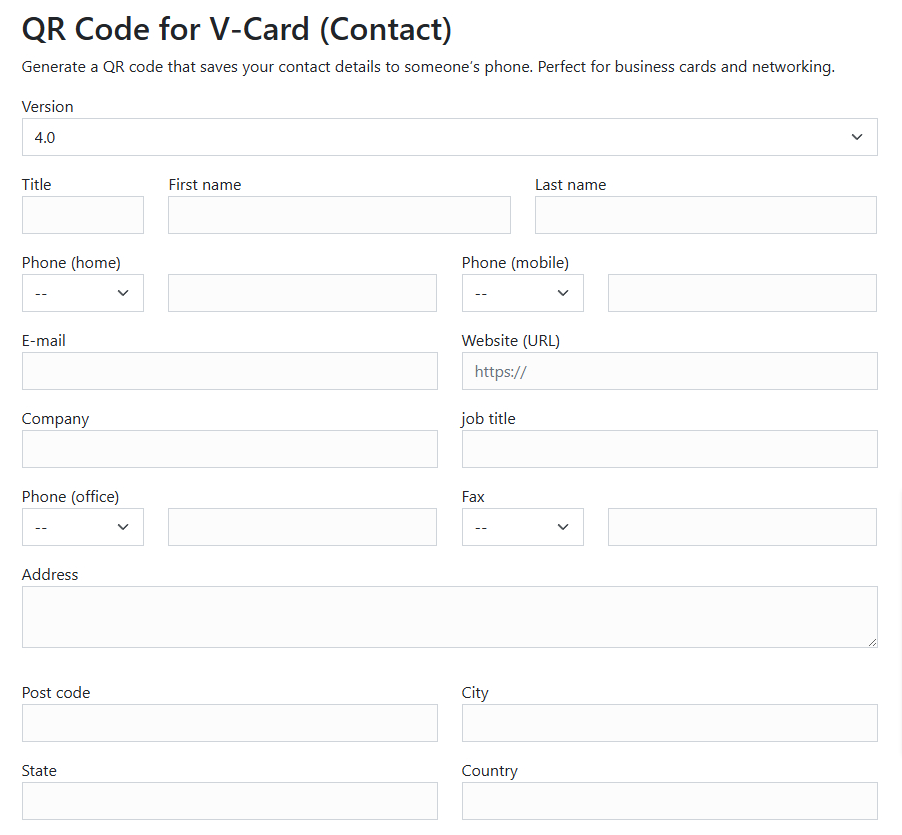
Create a digital business card QR code that adds contact information directly to a smartphone’s address book. Perfect for networking and professional events.
Fields Explained
- Version: Choose the Card format (e.g., 3.0 or 4.0).
- Personal Info: Title, first and last name.
- Contact Numbers: Home, mobile, office numbers with respective country codes.
- Email & Website: Enter valid contact email and company/personal website.
- Company & Job Title: Provide organizational details.
- Address: Street, city, state, postal code, and country.
QR Code for Event
This generates a QR code containing calendar event details. Attendees can scan and save the event directly to their devices.
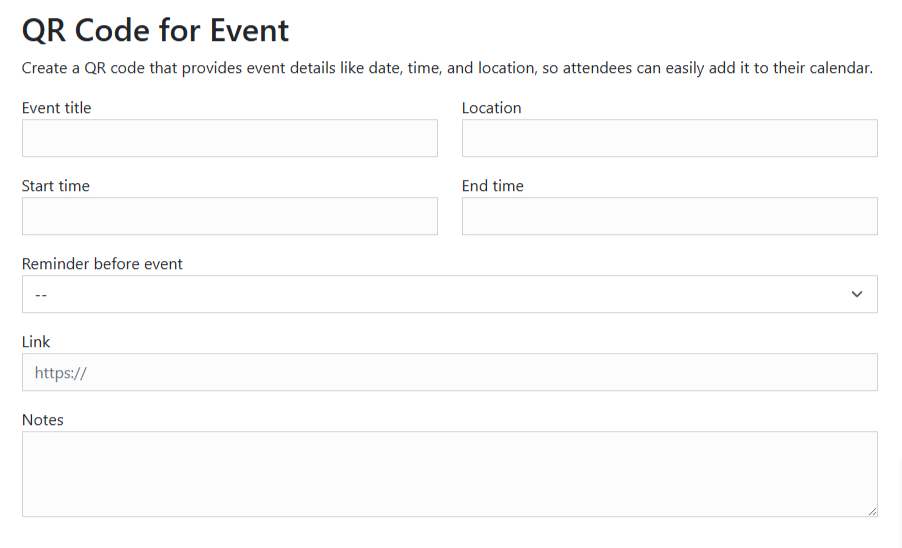
Fields Explained
- Event Title & Location: Provide name and address of the event.
- Start and End Time: Define the event’s schedule.
- Reminder Set: Notification time before the event begins.
- Link & Notes: Optional additional details or URLs.
QR Code for PayPal Payment
Generate QR codes for PayPal transactions, letting users pay you instantly for goods, services, or donations.
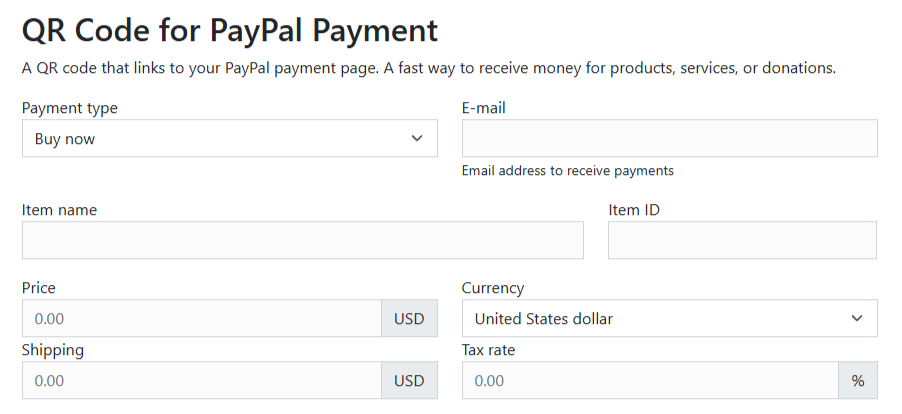
Fields Explained
- Payment Type: Choose “Buy now” or “Donate”.
- Email: PayPal account email to receive payments.
- Item Name / ID: Product name or unique identifier.
- Price, Shipping, Tax: Enter the required amounts and select currency.
QR Code for Bitcoin Payment
Create QR codes for Bitcoin transactions. Include your wallet address and amount for seamless cryptocurrency payments.
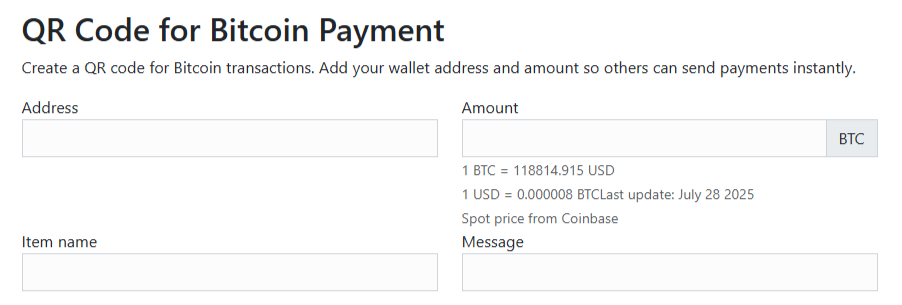
Fields Explained
- Address: Enter your Bitcoin wallet address.
- Amount: Specify the amount in BTC (optional but recommended).
- Item Name & Message: Provide additional details about the transaction.